How things work at TDM
Everything the front desk, teachers and Orielle need to run the day in Studio OS. Search, or start with your role.
Getting started 5
EveryoneWhat is Studio OS, in one paragraph?
Studio OS is The Dance Method's system for running the day. Teachers take attendance on the attendance page (the studio iPad or their own phone), the front desk runs the day from the front desk console, and trial families get followed up. This season StudioLab keeps registration, tuition and the family portal until January 2027, and Studio OS refreshes from it every night. On our side it is one system: a dancer checked in by a teacher shows at the desk within seconds, and a note a teacher writes is on the dancer's record for the desk and Orielle.
Front deskHow do I log in?
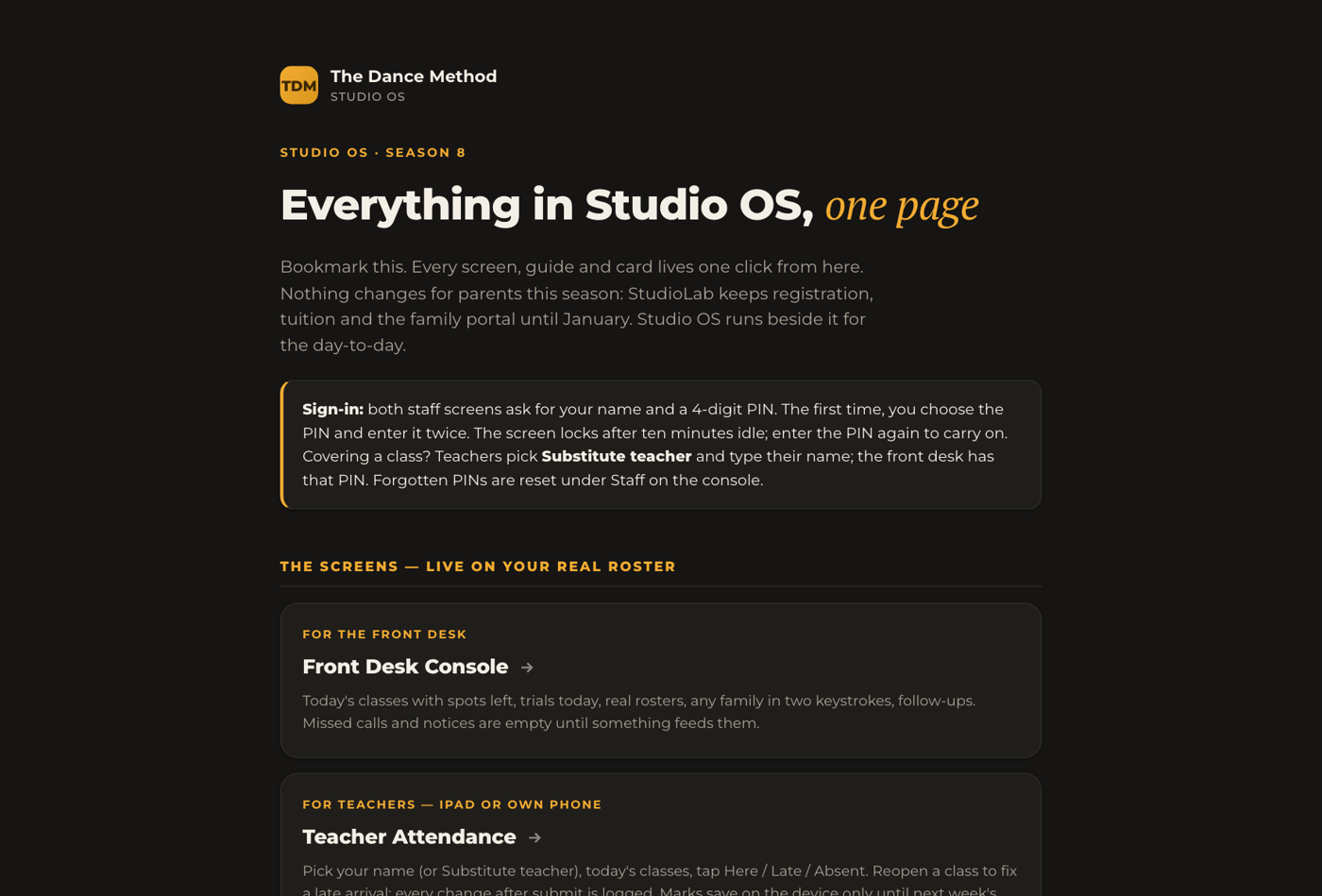
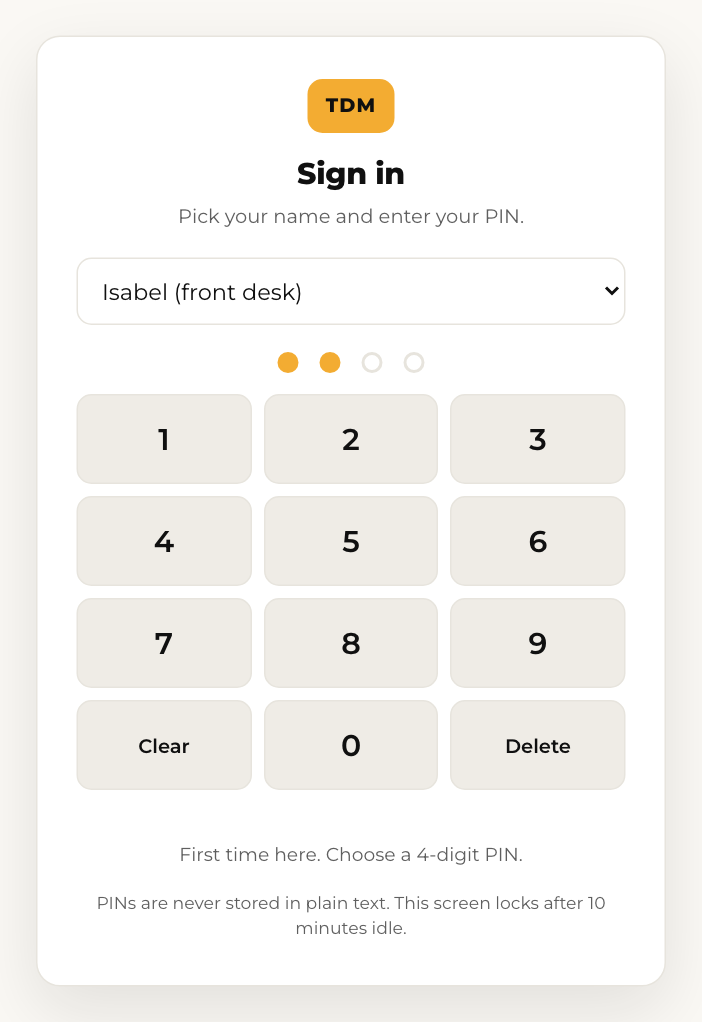
Open the Front Desk page (https://internal-mockups.justedo.ca/studio-os/frontdesk-console.html) and bookmark it. Pick your name from the list and enter your 4-digit PIN. The first time, there is no PIN yet: the screen asks you to choose one and enter it twice. That PIN is yours from then on. The screen locks after ten minutes with nobody touching it; enter your PIN again to carry on, or tap Switch person. Teachers do not use this page; they sign in on the attendance page the same way. Forgot your PIN? Orielle or the front desk can reset it under Staff, and you choose a new one at your next sign-in. Nothing here needs a Kanamé login.
EveryoneWhere do I go for help?
This page. Use the search box at the top, or the role cards to jump to your section. For anything about the platform itself (email, texting, calendars, the mobile app) use Kanamé Support at https://support.kanameplatform.com. For anything about TDM specifically (classes, policies, fees) ask Isabel at the front desk: (204) 560-2936 or hello@thedancemethod.com.
EveryoneWhat is the Studio OS home page?
One page with every Studio OS link: the front desk console, the attendance page, this help center, the printed cards, the staff manual and the owner guide, plus a plain note on what runs where this season. It is the Studio OS home link at the bottom of the console's menu and on the attendance sign-in screen. Bookmark it on any device and everything else is one tap away.
Front deskWhat do I do on my first day?
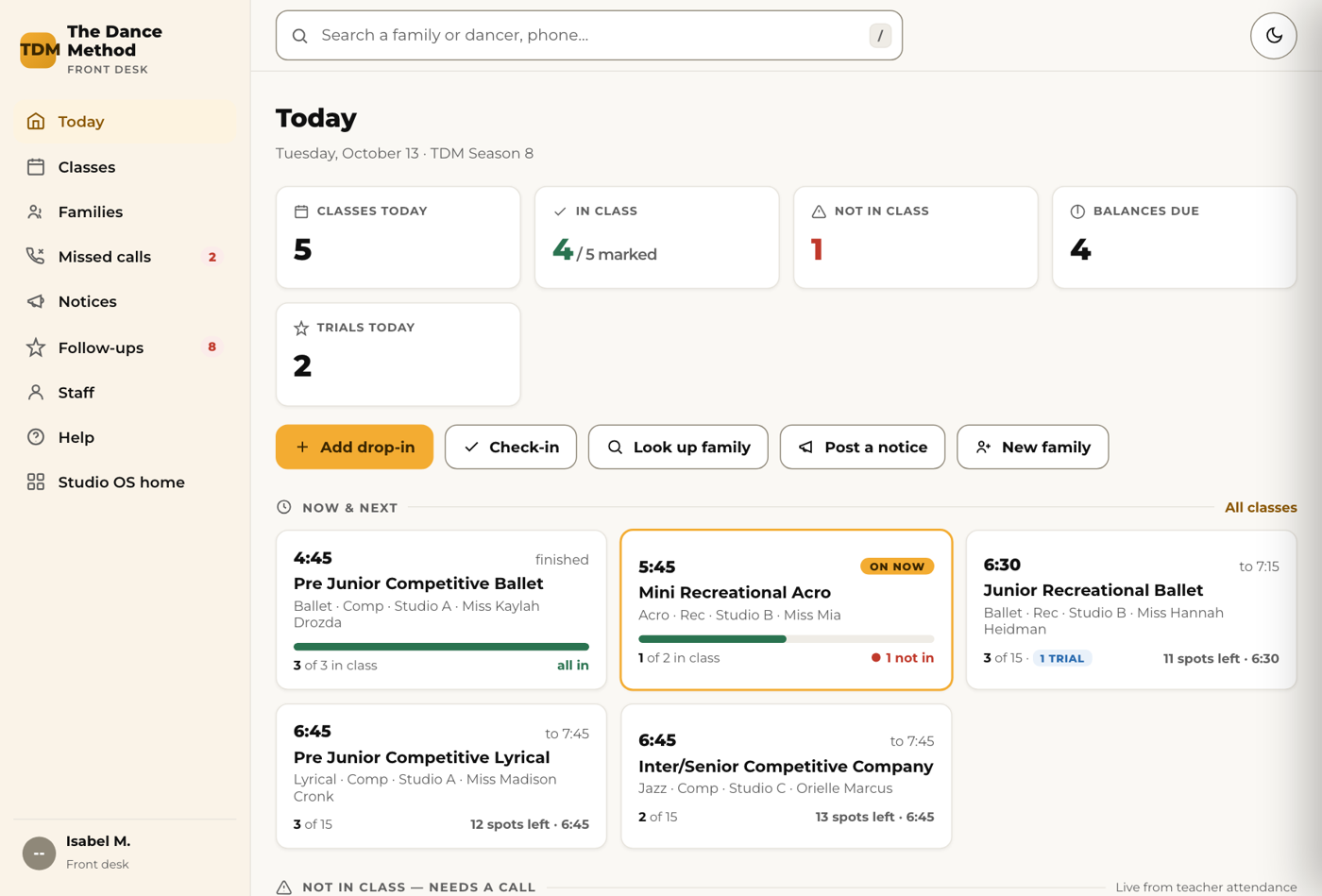
Three things. 1. Log in and open the Front Desk console. 2. Read the Today screen top to bottom: the four counts, the Now and next classes, and the three lists under them. 3. Tap one family in the search box to see what a family record looks like. That is the whole job on day one. The manual sections below cover each screen.
Front desk 13
Front deskWhat do the class cards on Today mean?
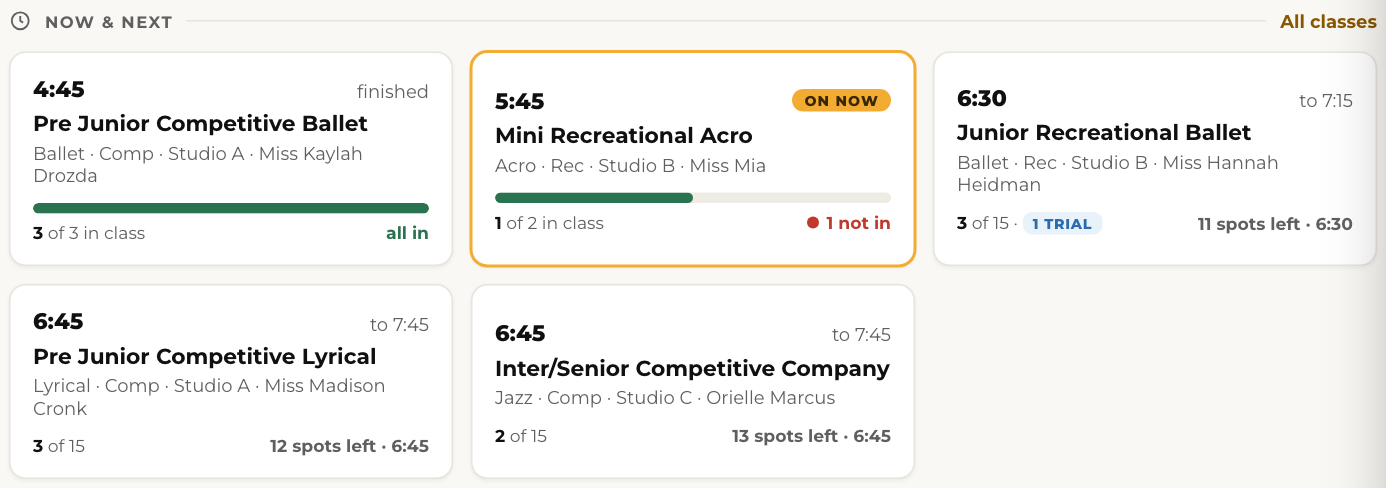
Each card is one class today. On now or finished cards show how many dancers are in against how many are expected. Not marked yet means the teacher has not started attendance, so nobody is flagged. N not in means the teacher has started and those dancers have no mark: they are the Not in class list. All in means everyone expected has been marked. Taken by names who submitted the register; (updated) means it was reopened and submitted again. Tap a card to open the roster.
Front deskWhat is on the Today screen?
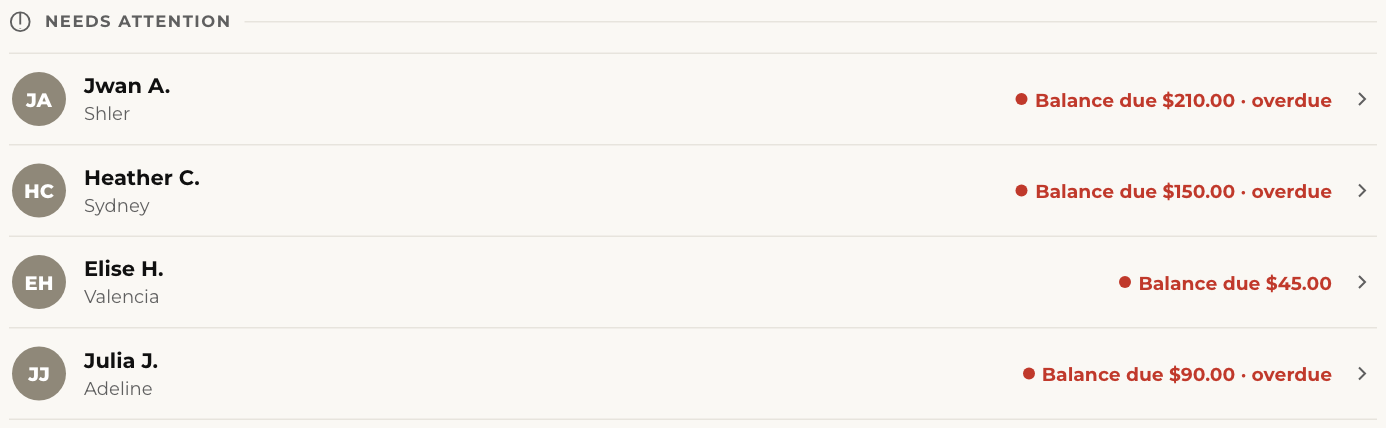
Today is the screen you leave open. From the top: four counts (classes today, dancers in class against expected, dancers not in class, families with a balance due), a row of quick actions (add a drop-in, check-in, look up a family, post a notice, new family), then Now and next (the classes running now and up next, tap one to open its roster), Not in class (dancers a teacher has not marked in, with a Call button), Trials today (who is trying a class today and which class), then Birthdays this week, Missed calls, and Needs attention (balances and unsigned waivers). Anything that needs you is on this one screen.
Front deskHow do I find a family or a dancer?
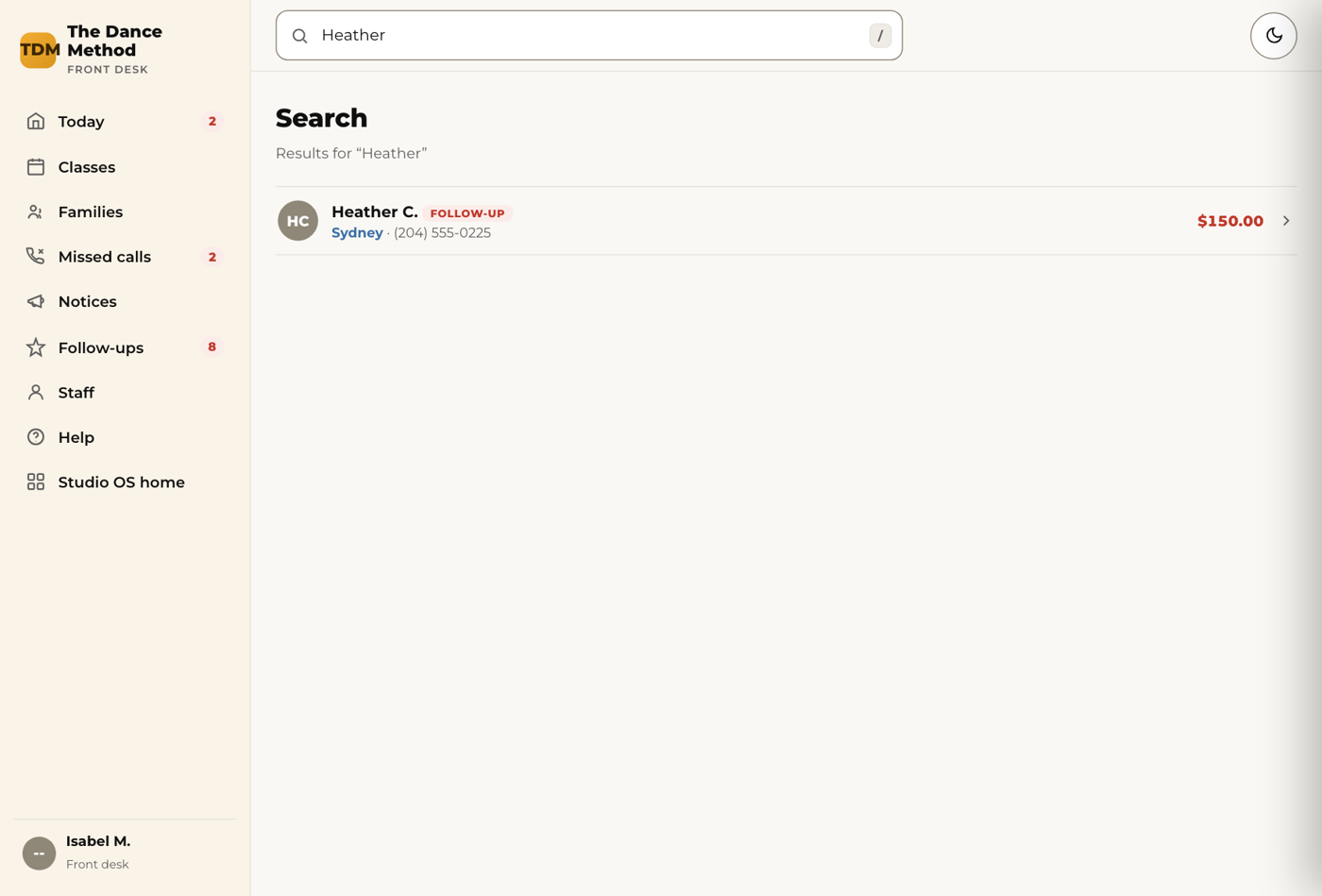
Tap the search box at the top (or press the / key) and type a name or phone number. Results show the family, every dancer in it, and their classes. Tap a result to open the family drawer.
Front deskWhat is in the family drawer?
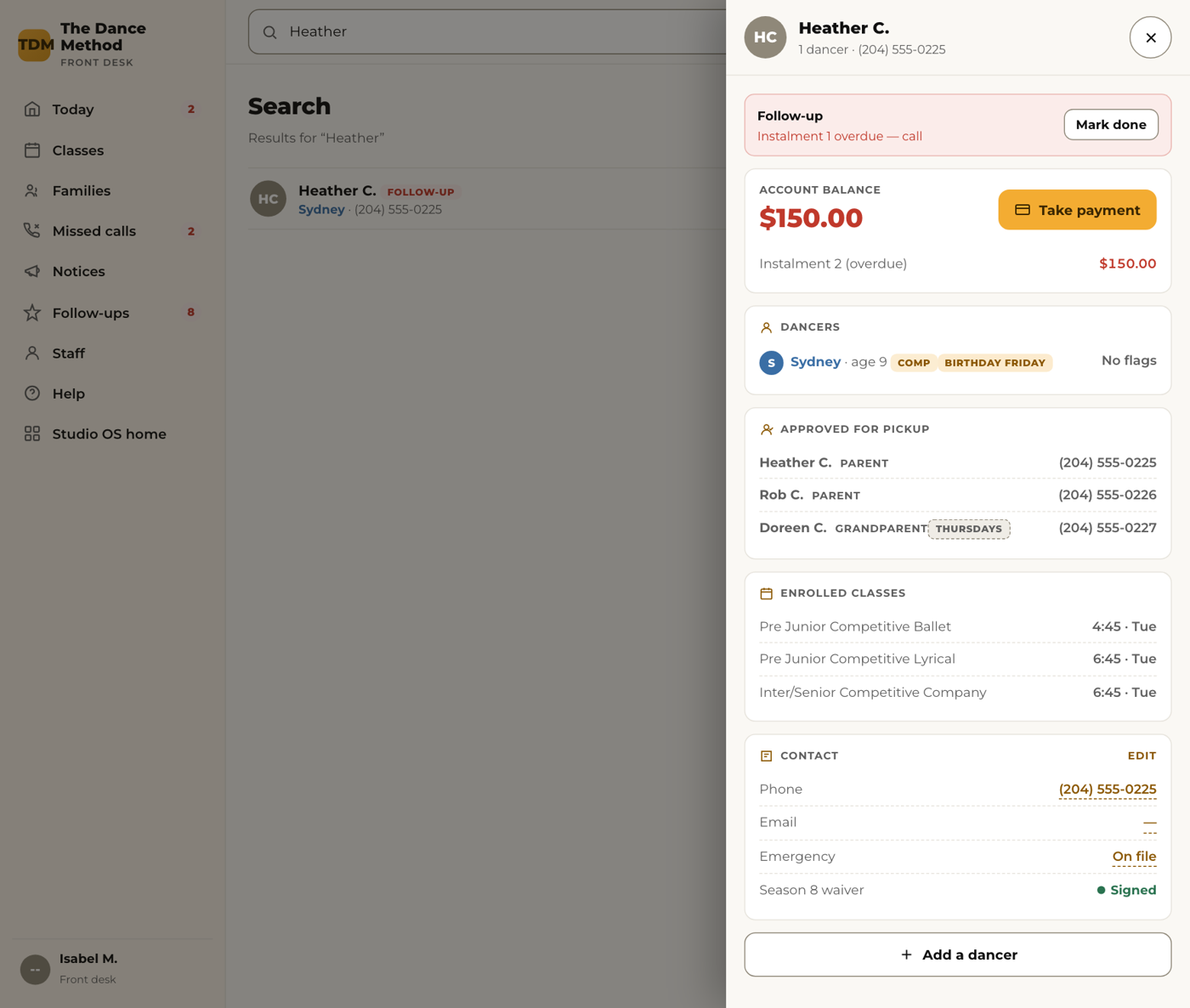
Everything about one family on one panel: the account balance, the dancers with age, allergy or medical flags and their classes, the guardian's phone and email, the waiver status, any open follow-up, approved pickup people, and notes from teachers about each dancer. Where a change is made (a new phone number, a payment) depends on the season; the answers below say where.
Front deskA dancer has arrived but the teacher has not marked them in. What do I do?
On the Today screen under Not in class, or on the class roster, tap Arrived next to the dancer's name. That checks them in from the desk. The teacher's list updates on the iPad within a few seconds.

Front deskA dancer is missing from class. What do I do?
The Not in class list on Today shows every dancer a teacher has not marked in once the class has started. Tap Call to ring the guardian. When you have spoken to them, the dancer moves off the list. If the parent says the dancer is sick, that is all you need to do. The absence is on the record.
Front deskWhat is "From teachers" on the Today screen?
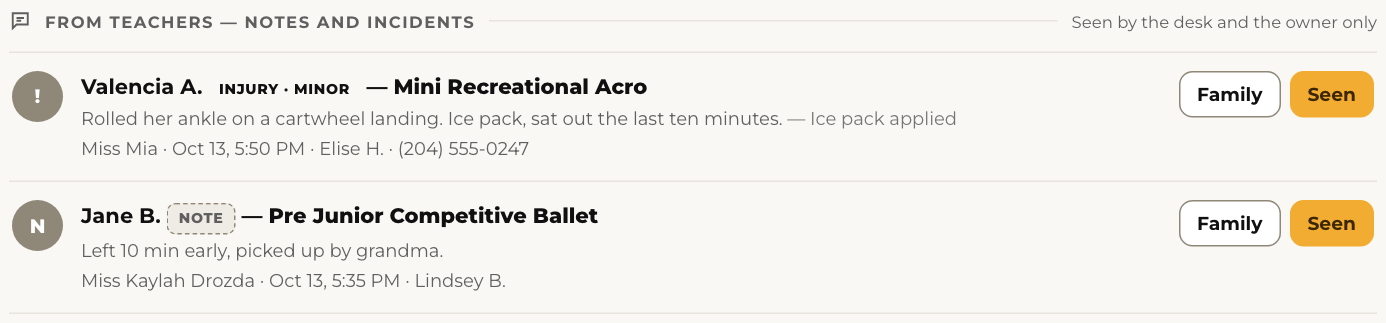
Every note or incident a teacher logs from the attendance page lands there, newest and most serious first, with the dancer, the class, the teacher and the parent's number. Read it, act on it if it needs a call, then tap Seen so the owner knows it was handled. It stays on the dancer's record (open the family and look under From teachers). Teachers cannot message parents from the attendance page; the desk and Orielle decide what the parent hears.
Front deskHow do I record who is allowed to pick up a dancer?
In https://connect.kanameplatform.com open the family's contact and fill in Approved pickup people: one person per line, with their relationship and phone (for example "Grandma Sue, grandmother, 204-555-0199"). Within the hour it shows under Approved for pickup on the family drawer in the console and on the teacher's roster card, so whoever hands the dancer over can check it. Until a family has a list, confirm with the parent before releasing a dancer. Later on, parents will be able to fill this in themselves.
Front deskHow do I add a drop-in?
This season drop-ins are added in StudioLab, the same way as before. The dancer shows on the class roster in Studio OS the next morning, after the overnight refresh. If they are dancing today, tell the teacher so they can add a note on the iPad.
Front deskHow do I post a notice for families?
Not yet. Notices post to the family portal, which opens in January 2027. Until then the console's Notices screen says so, and family messages go out the way they do today.
Front deskWhat is the Follow-ups screen?
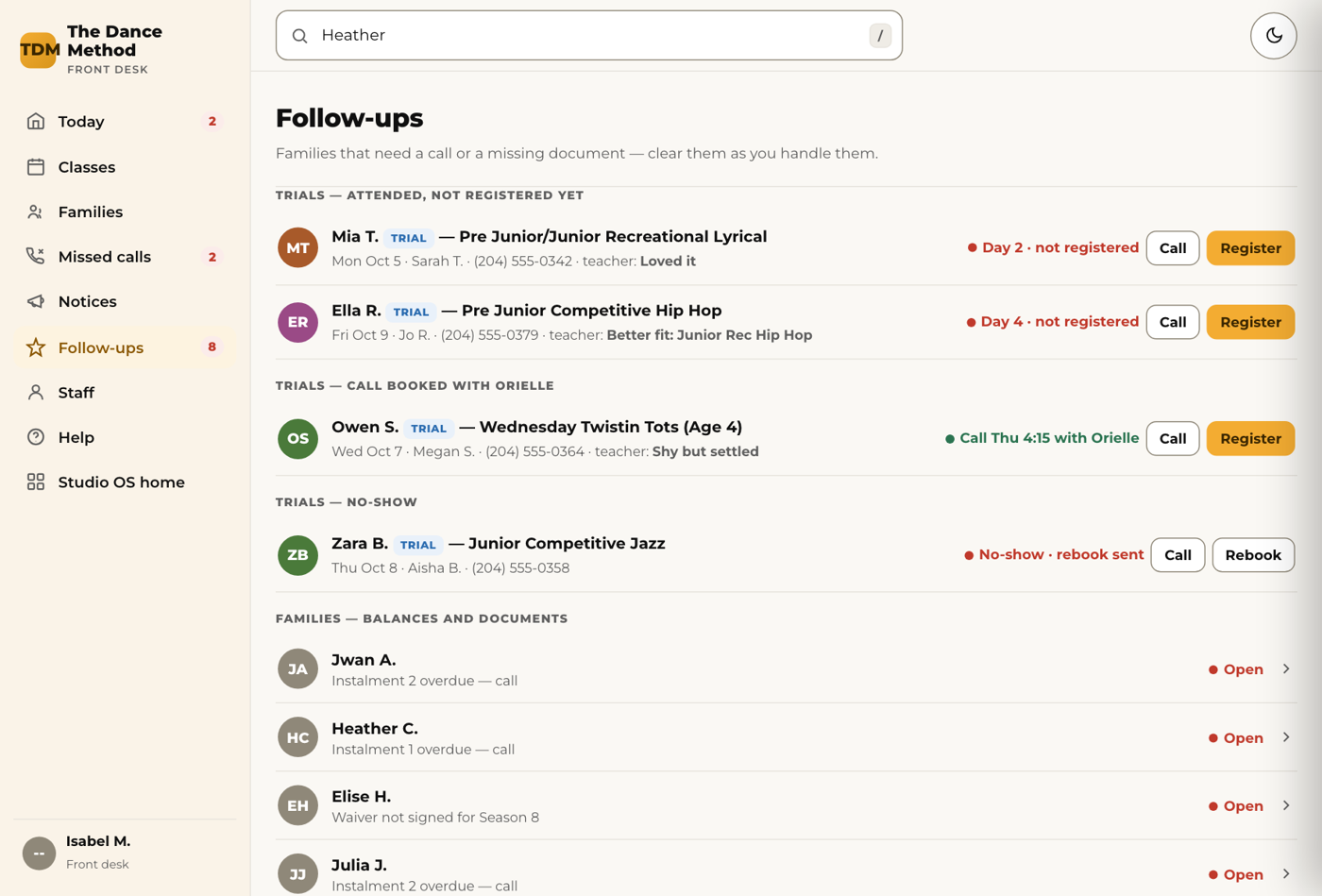
The list of families someone at the desk needs to contact, with the reason. Balances, unsigned waivers, a parent who asked to be called back, and trial families who have not registered yet. Tap a row to open the family, and Mark done when it is handled.
Front deskWhat is the Missed calls screen?
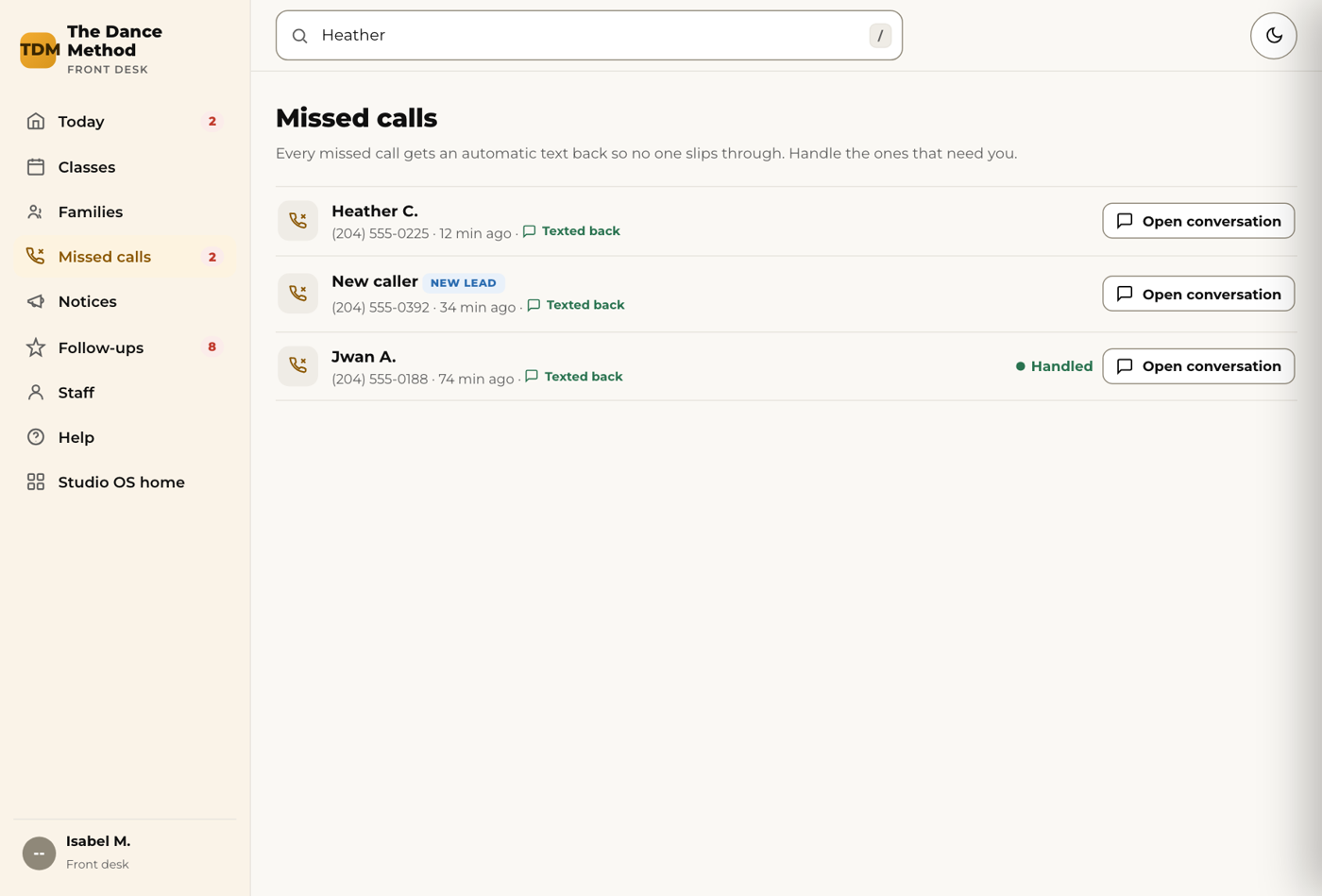
A placeholder for now. Missed calls are not connected to the console yet; they live in https://connect.kanameplatform.com under Conversations, where the automatic text-back and the replies are. The screen says so until it is connected.
Front deskA parent's phone number or email has changed. Where do I update it?
In StudioLab, as before. Studio OS refreshes from it overnight, so the console shows the new number the next morning. If the family also texts or emails with the studio through https://connect.kanameplatform.com, update the contact there too so replies reach the right number.
Teachers 8
TeachersHow do I take attendance?
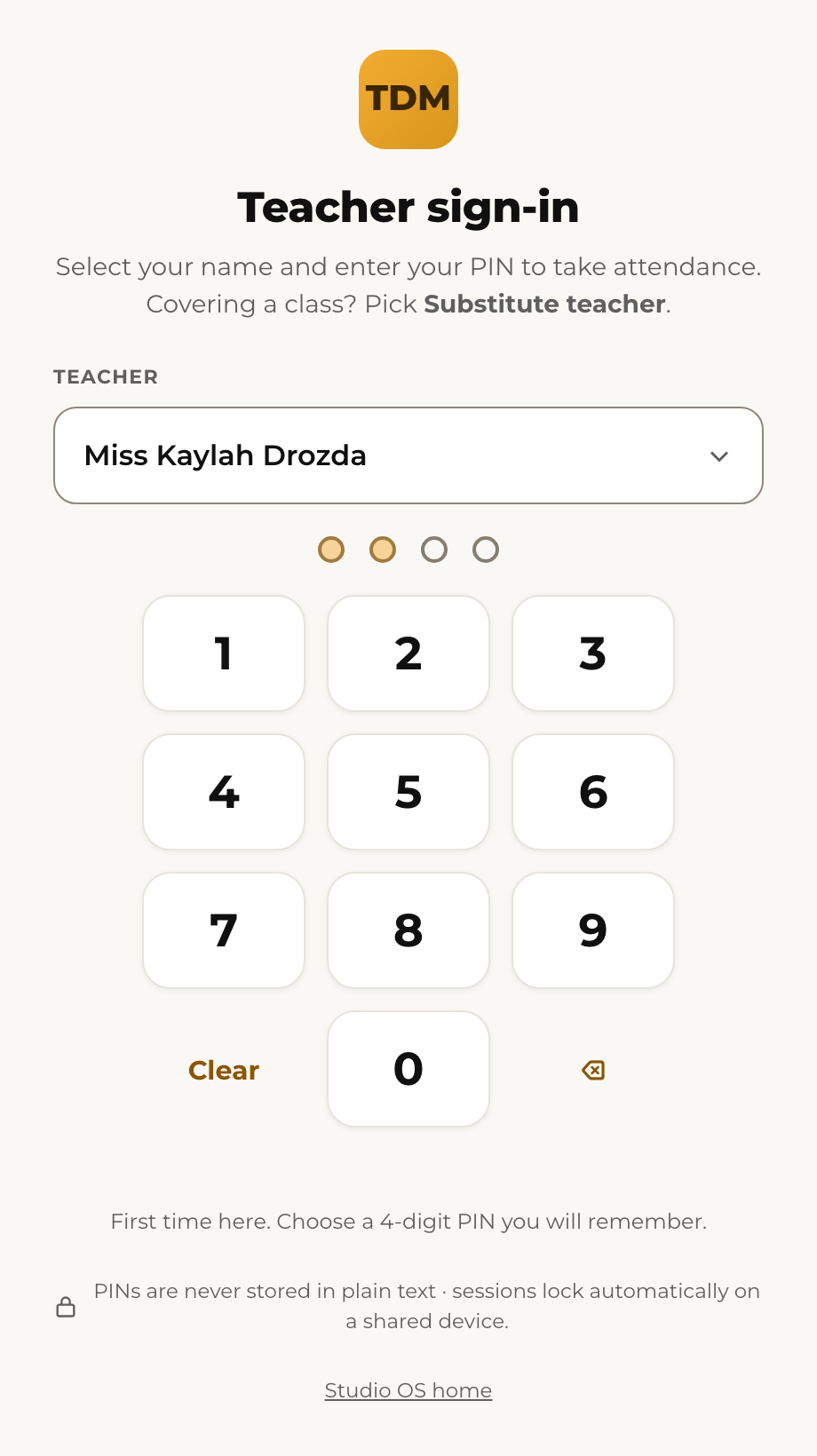
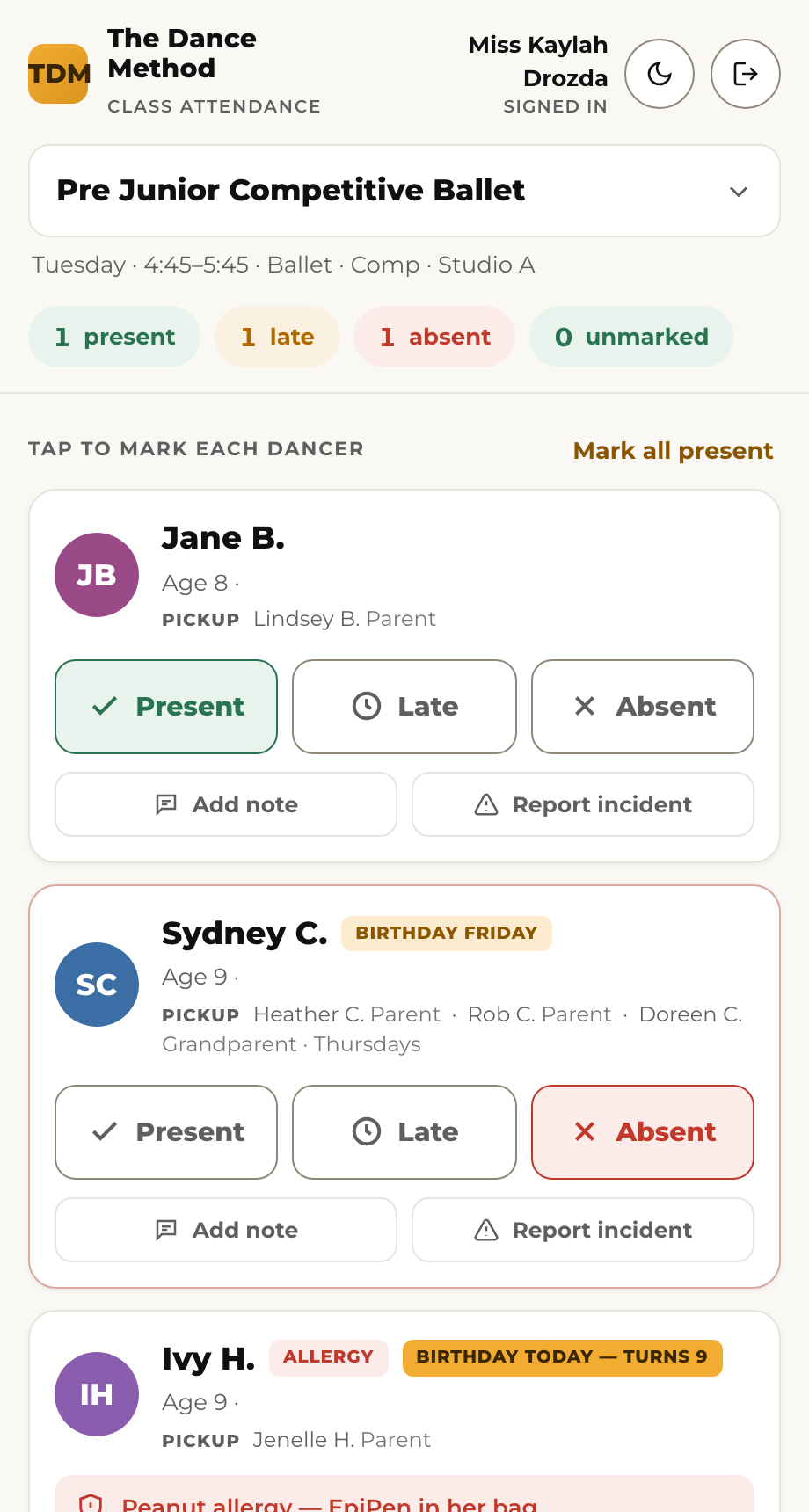
On the studio iPad, or on your own phone or laptop, open the attendance page (https://internal-mockups.justedo.ca/studio-os/attendance-class.html), pick your name, enter your PIN (the first time you choose one and enter it twice), and pick your class. Every dancer on the roster is a card. Tap Present as each one arrives. Tap Late if they arrive after the first ten minutes, and Absent for anyone who has not shown by the end of warm-up. The front desk sees your marks as you make them, and a dancer the desk checks in at the counter shows as present on your list too.
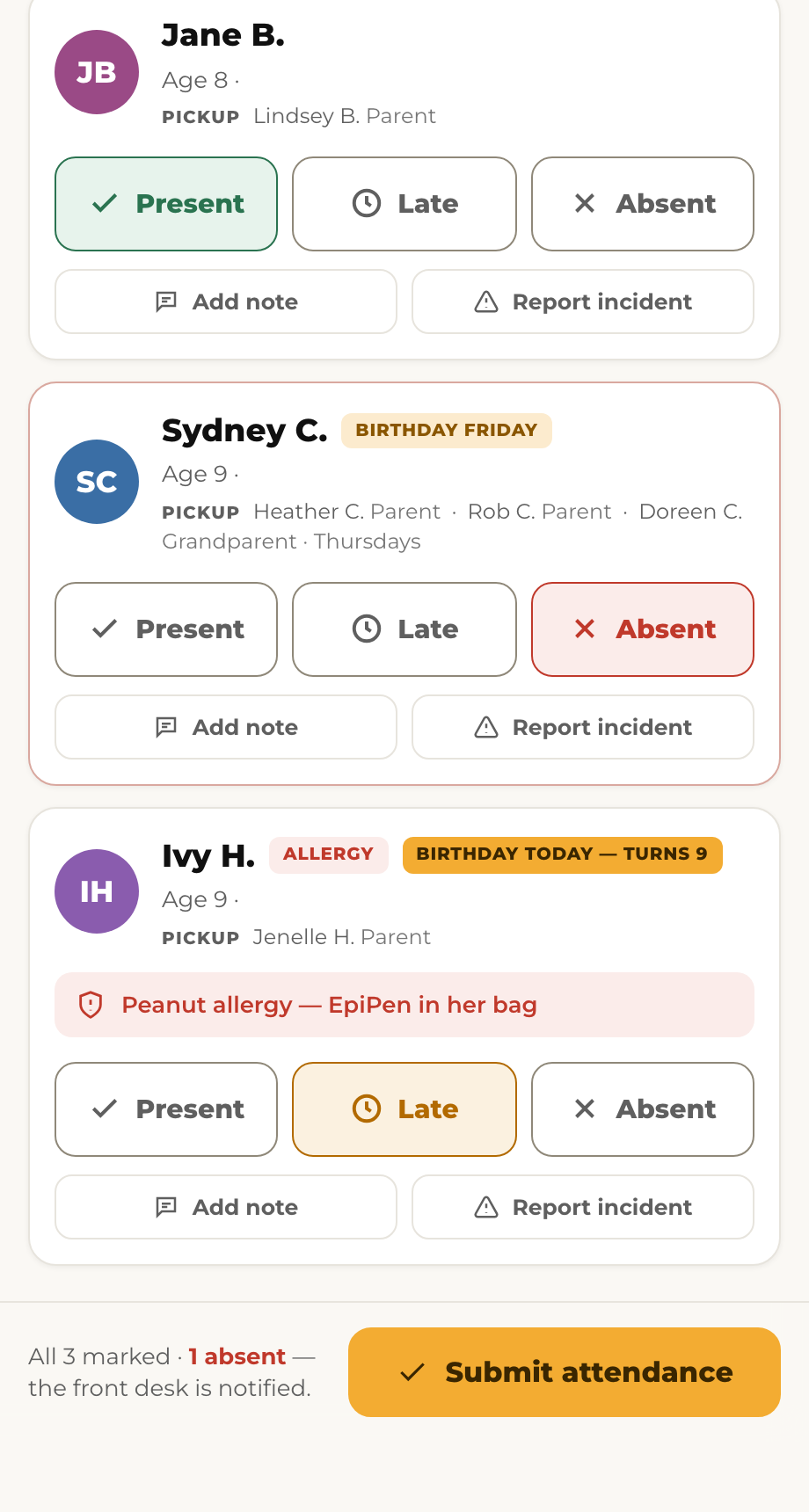
TeachersA dancer is on my roster who should not be, or someone is missing.
Tell the front desk. They can add a drop-in from the console so the dancer appears on your list, or fix an enrolment. You do not need to do anything else on the iPad.
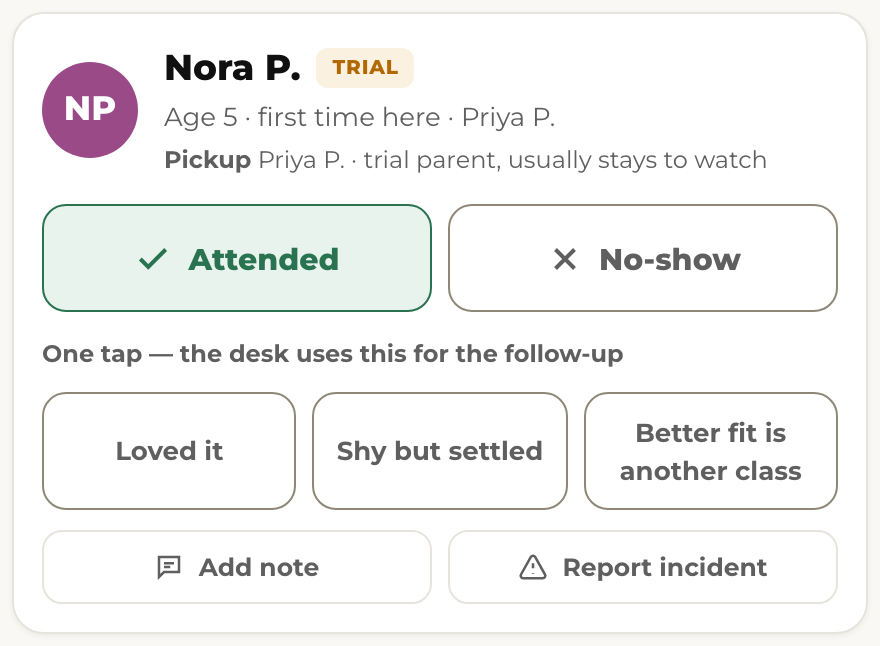
TeachersThere is a Trial badge next to a name. What do I do differently?
That dancer is trying the class for the first time. Greet them by name, and at the end of class mark them Attended (or No-show if they never came) and tap one of three notes: Loved it, Shy but settled, or Better fit is another class. That one tap is what starts the follow-up with the parent, so please do it before you leave the room.
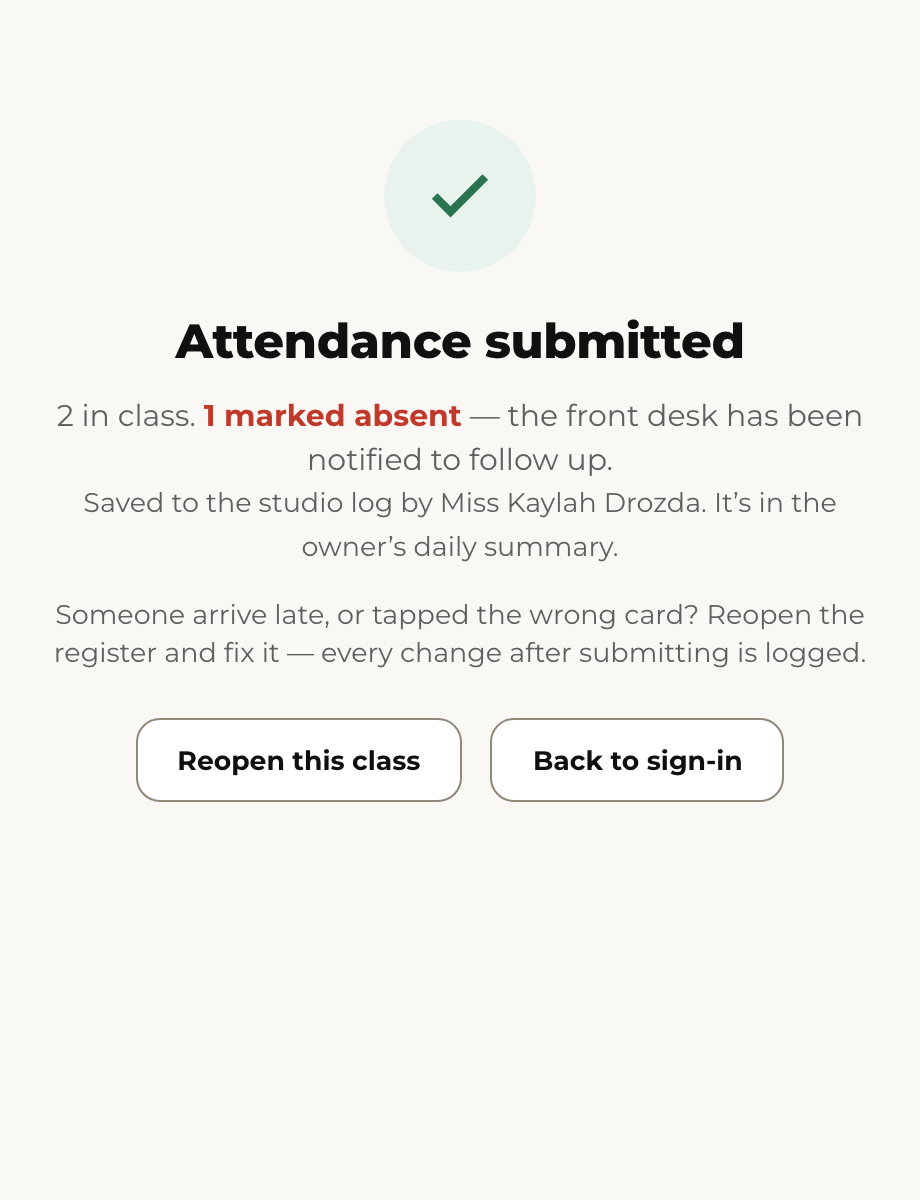
TeachersA dancer arrived after I submitted attendance. Can I change it?
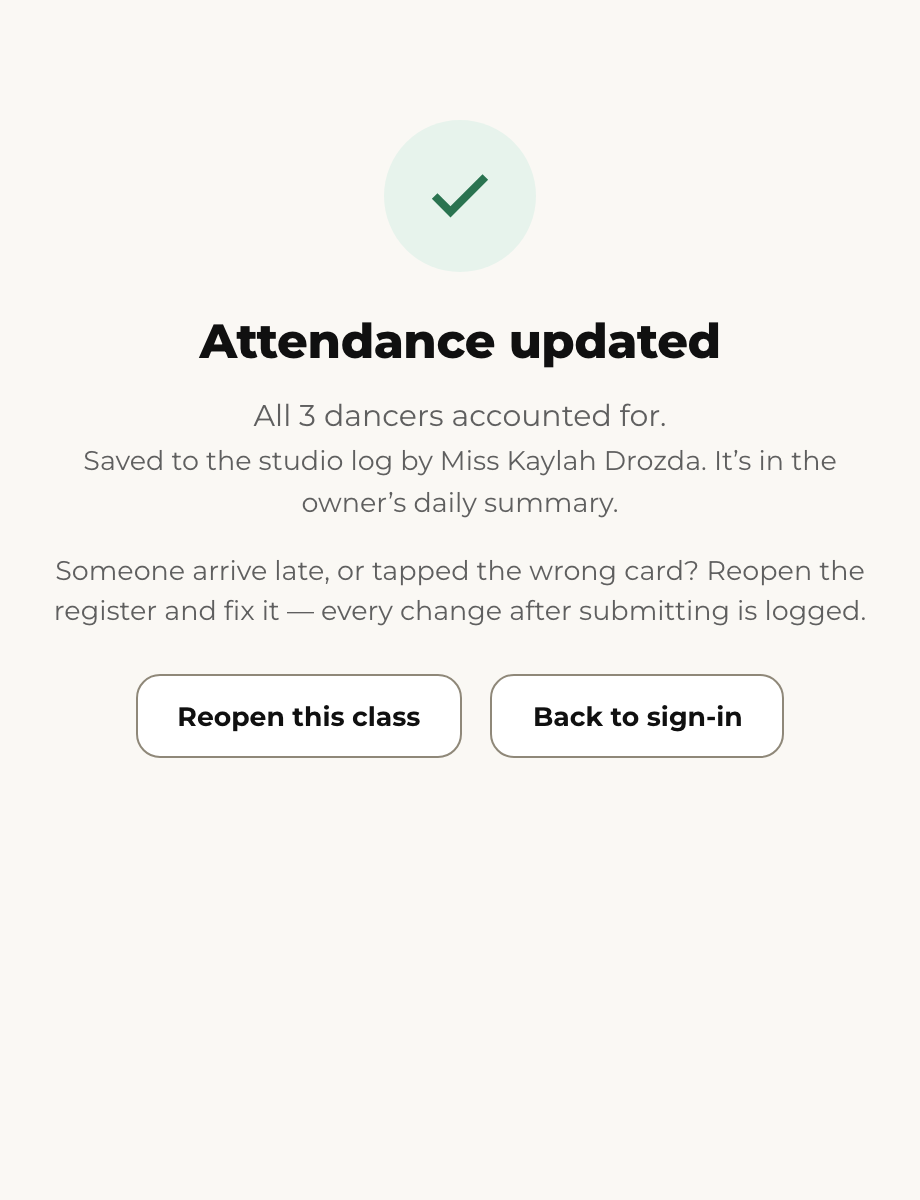
Yes. Nothing is locked. On the Attendance submitted screen tap Reopen this class, tap the dancer's card to Late (or Present), then Submit attendance again. The screen now says Attendance updated. If you have already gone back to sign-in, sign in again and pick the same class; your earlier marks are still there.
TeachersI tapped the wrong card. Can I fix a mark?
Yes, the same way: reopen the class, tap the right mark, submit again. Every change made after a register was submitted is kept as a correction with your name and the time, so the front desk and the owner can see what changed. You never need to ask anyone to unlock it.
TeachersDoes attendance I take on my phone show up at the front desk?
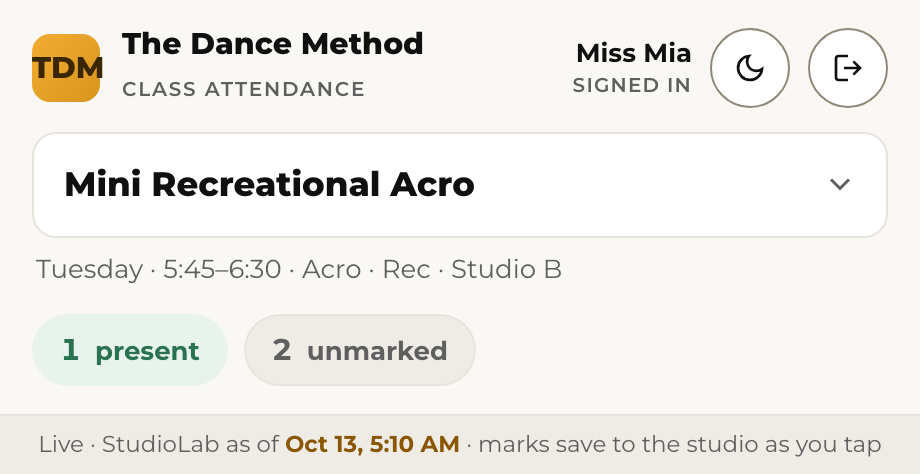
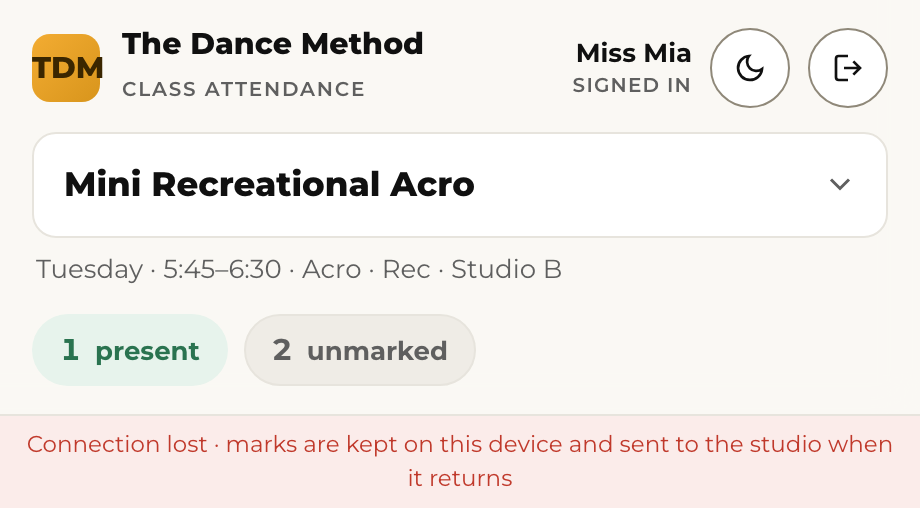
Yes. Every tap saves to the studio as you make it, and the front desk sees it on their Today screen straight away. The top bar of the page says marks save to the studio as you tap when everything is connected. If the connection drops, the bar turns red and says the marks are being kept on your device; they send themselves the moment the connection comes back, so leave the page open if you can. You can also switch devices mid-class: sign in on the other one, pick the same class, and your marks are there.
TeachersI need to leave a note about a dancer.
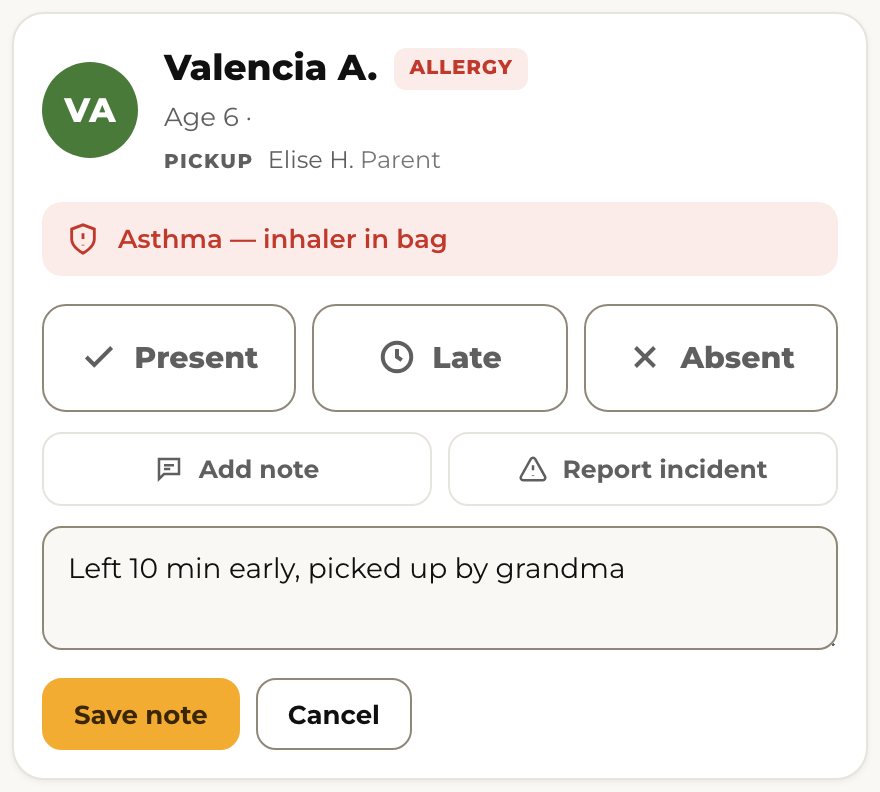
Tap the dancer's card, then Add note. Keep it short and factual. The note goes to the front desk and Orielle (they see it in From teachers on the Today screen and on the dancer's record). It is never sent to a parent from the attendance page. Anything urgent (an injury, a safeguarding concern), also tell the desk in person.
TeachersA dancer was hurt or something happened in class. How do I report it?
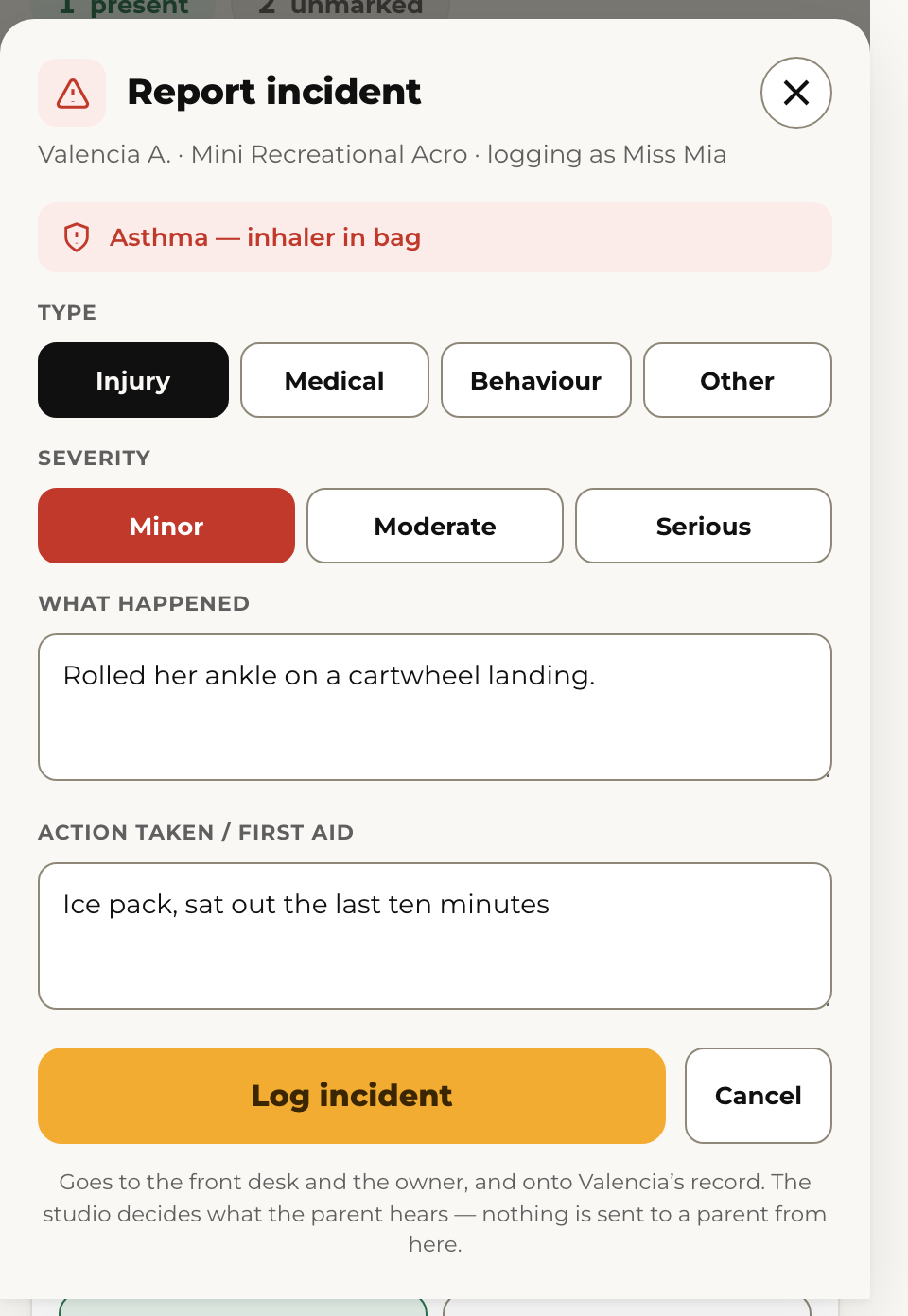
On the dancer's card tap Report incident, pick the type (Injury, Medical, Behaviour, Other) and how serious it was, write what happened and what you did (first aid, sat out, called the desk), then Log incident. It goes to the front desk and Orielle right away and stays on the dancer's record. The studio decides what the parent hears and who says it; nothing is sent to a parent from the attendance page. For anything serious, also tell the desk in person before the dancer leaves.
Trials 4
EveryoneHow does a trial class work in Studio OS?
A trial is booked (by the parent online, or by the desk). The parent gets a confirmation with the date, time, teacher, what to wear and where to park, then a reminder the evening before and the morning of. The dancer appears on the teacher's roster with a Trial badge. After class the teacher taps Attended and one note. The parent gets a text from Orielle that evening asking how it went, then an email with the teacher's note, a couple of words from other parents, and a link to register for that exact class. If they have not registered in two days, they get one more nudge, and the offer of a ten-minute call with Orielle. The desk sees every trial that has not registered yet on the Follow-ups screen.

Front deskHow do I book a trial for a family at the desk?
Tap New family on Today (or open an existing family), choose Book a trial, pick the class and the date, and confirm. The parent's confirmation goes out on its own. If the class is full, the console says so before you confirm.
Front deskWhere do I see today's trials?
On Today under Trials today: the dancer, the class and time, the teacher, spots left in that class, and the parent's phone. Greet them by name at the door. Everything a trial family needs to know has already been sent to them.
Front deskA trial family wants to register. What do I do?
Best is the link in their email, which registers them into that class. If they are at the desk, open the family and tap Register on the dancer. Either way the follow-ups stop on their own and the dancer moves from Trial to Enrolled on the roster.
Families & the portal 4
EveryoneWhat can a parent do in the family portal?
See each dancer's weekly schedule, register for classes, read studio notices, update their own contact details, sign the season policies, and (where turned on) see their balance and pay. The portal is at https://internal-mockups.justedo.ca/studio-os/. They log in with the email on their family record.
Front deskA parent cannot log in to the portal.
Open the family in the console and check the email on the account. That is the address the sign-in link goes to, so a typo or an old address is the usual cause. If it is wrong, fix it in quick-edit. Then tap Send sign-in link; the screen tells you which address it went to. Have the parent check that inbox (and the Promotions or Junk folder). The link works for 15 minutes and once only. There is no password to reset: the portal signs parents in by link.
Front deskHow do I walk a parent through their portal on the phone?
Open the family in the console and tap View portal as this family. Their portal opens in a new tab exactly as they see it, with a banner saying you are viewing as them. You can look at every screen and point them to the right button, but nothing can be changed or paid from your view. Close the tab when you are done; the view ends on its own after 15 minutes. Each time you do this is recorded, so use it only while helping that family.
Front deskA parent asks what "Register" means next to a class.
It means the class is open and their dancer is the right age for it. Tapping it adds the class to their registration. Enrolled next to a dancer's name means it is done. By audition means the class is competitive and needs the teacher's yes first.
Owner & admin 4
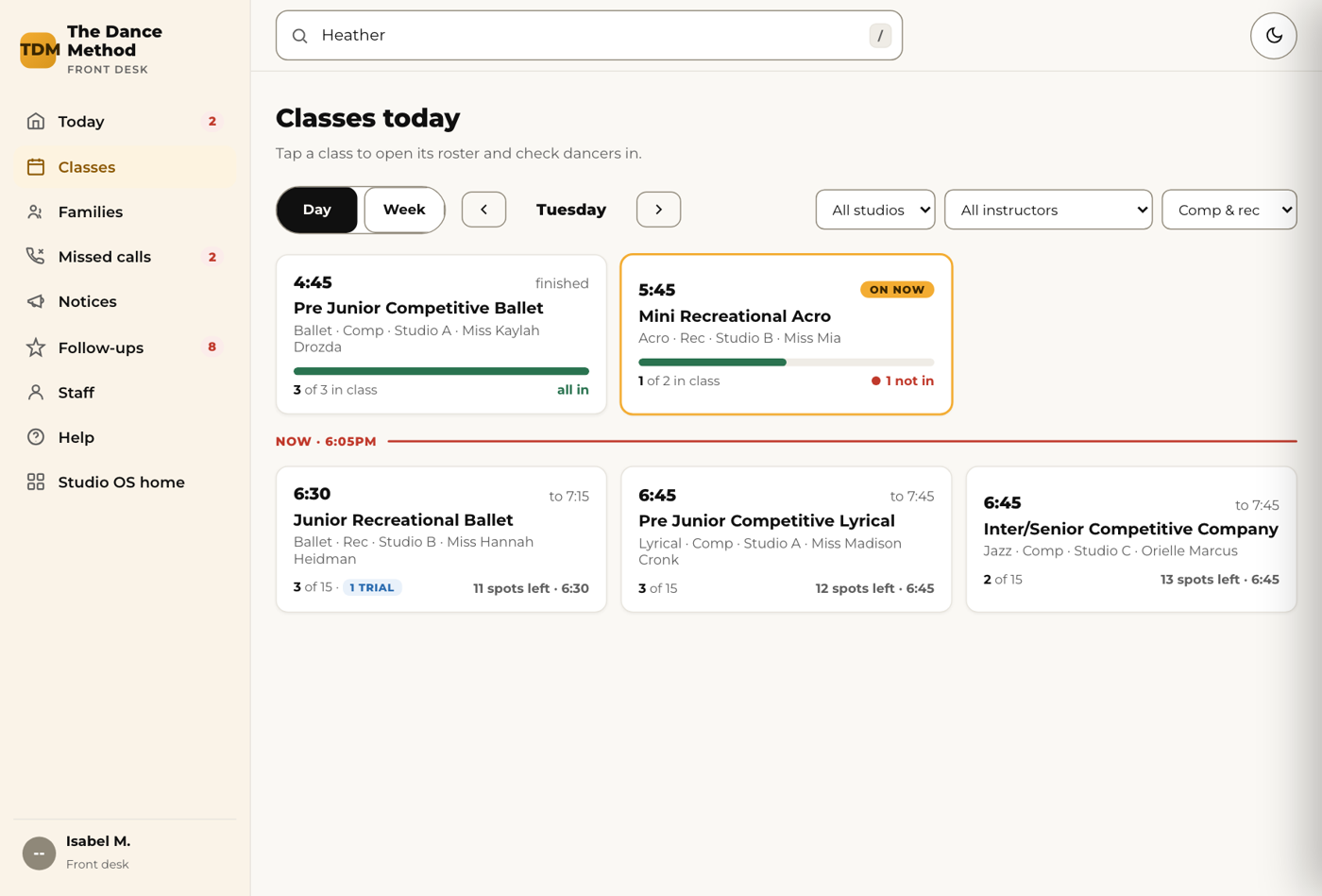
OwnerHow do I see how full each class is?
Open Classes in the console. Each class shows enrolled against capacity. Anything at or over capacity is highlighted. Tap a class for the roster.
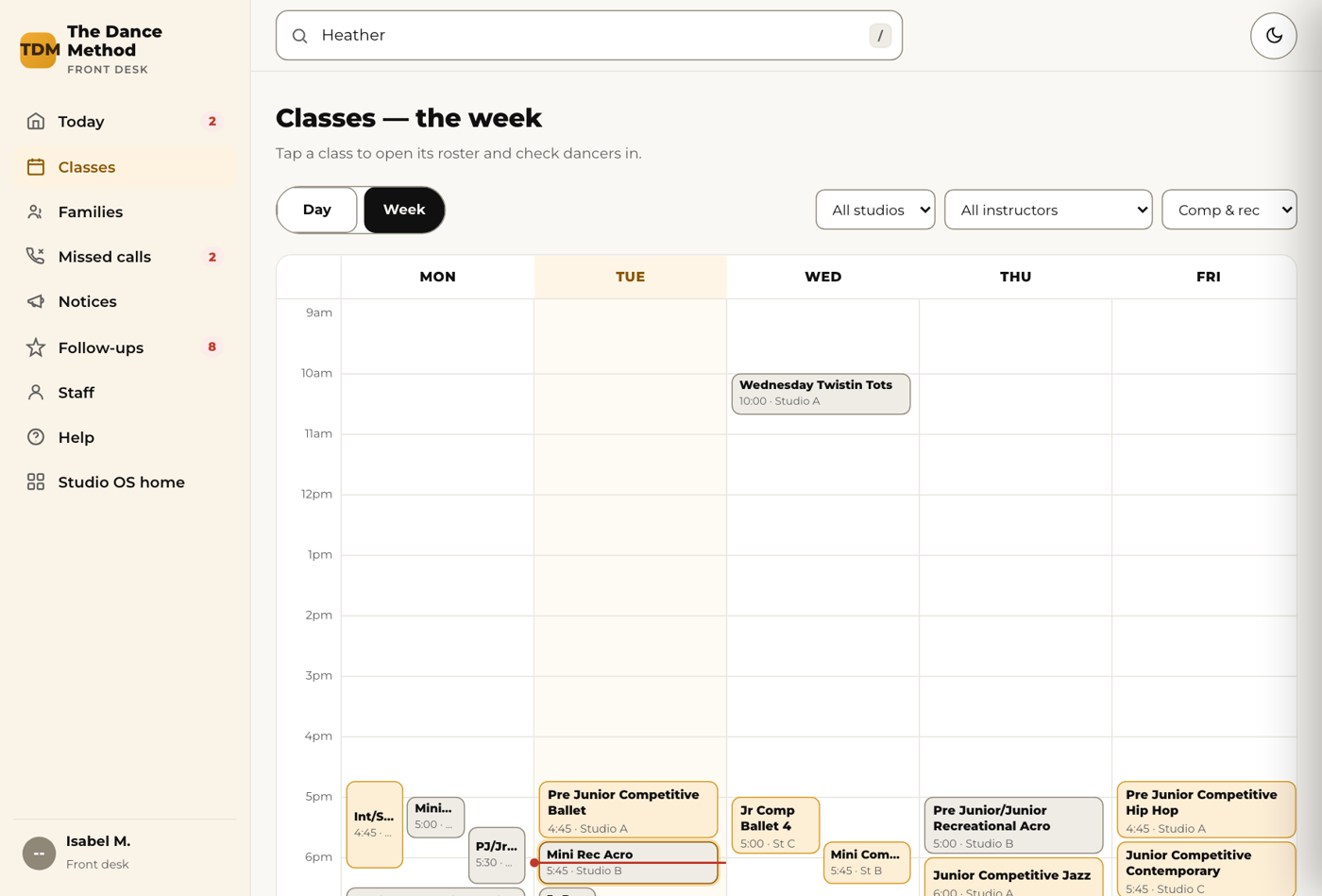
OwnerHow do I change a class's capacity, teacher or time?
Teacher, day, time and room change in StudioLab this season and show in Studio OS the next morning. Capacity is set in Studio OS (15 for most classes, 12 for Twistin Tots, agreed in September); to change a class's capacity, tell Isabel or the Studio OS team and it is updated the same day. The console's Classes screen shows enrolled against capacity either way.
OwnerHow do I add a staff member?
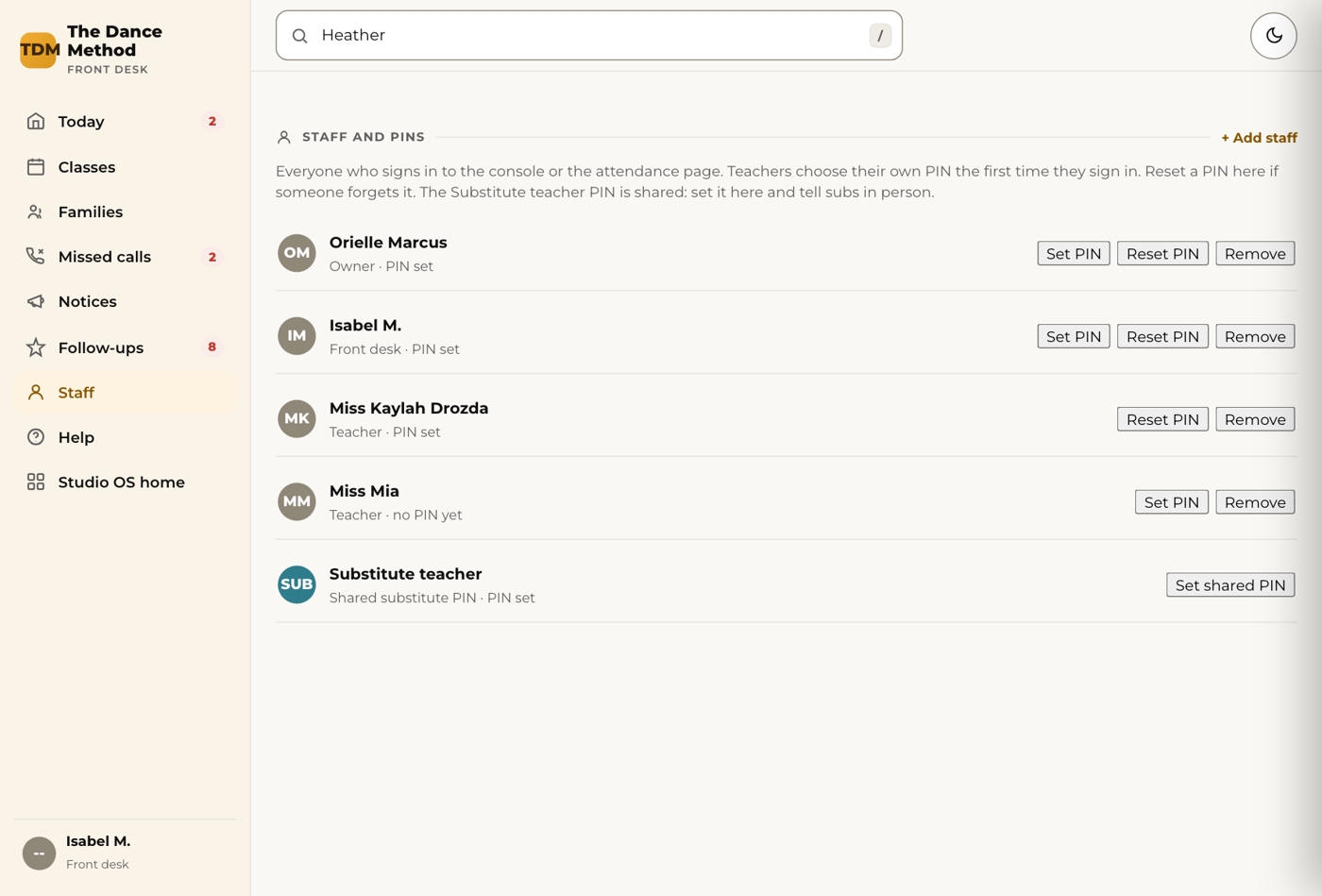
Open Staff in the console (owner or front desk only), tap Add staff, enter their name and pick the role (teacher, front desk or owner). They choose their own PIN the first time they sign in on the attendance page or the console; no email or activation step. To remove someone, tap Remove on their row and their PIN stops working immediately. A Kanamé login is separate and only for people who work inside Kanamé (email, texting, calendars); ask the Studio OS team to set one up.
OwnerWhat does the trial report tell me?
For now the report is the Follow-ups screen in the console: every trial by stage (booked, attended, no-show, follow-up, registered, not now) with the family's contact details, and the Trials tab of the studio's data sheet. Historically about four in ten trial dancers register; the follow-up sequence is built to move the other six. A weekly summary email is planned once the follow-up sequence is running.
Your studio 2
Front deskWe are still using StudioLab for some things. Which system do I use for what?
Until January 2027, registrations, enrolments and payments stay in StudioLab. Studio OS reads from it every morning, so anything entered there appears in the console and on rosters within a day. Attendance, check-ins, notices, follow-ups, missed calls and trials run in Studio OS. If you change a family's phone or email, change it in Studio OS; that is where the texts come from. When in doubt: money and enrolment in StudioLab, everything about today in Studio OS.
EveryoneWho do I ask at TDM?
Isabel (Front desk) for anything day to day: (204) 560-2936, hello@thedancemethod.com, Orielle (Owner) for policies, staffing and anything a parent escalates.